PWA — minimum requirements
A PWA (Progressive Web App) is a web application that behaves much like a native app installed on a desktop or mobile device. In this article, you’ll learn how to make your application meet all the minimum PWA requirements in just 15 minutes - and make it installable.
HTTPS
The first requirement is to serve your website over HTTPS. This is necessary to register a service worker. The most popular free method is to use a certificate from Let’s Encrypt.
Manifest
This is a JSON file that determines the behavior of the application after installation. First of all, it should contain the application name, icon paths, and start URL. The complete specification of this file is available on the W3C website.
An example manifest.json file for a PWA application might look like this:
{
    "name": "Smakowity.pl",
    "short_name": "Smakowity.pl",
    "description": "Food recipes and articles.",
    "icons": [{
            "src": "/android-chrome-192x192.png",
            "type": "image/png",
            "sizes": "192x192"
        },
        {
            "src": "/android-chrome-512x512.png",
            "type": "image/png",
            "sizes": "512x512"
        }
    ],
    "start_url": "/?source=pwa",
    "display": "standalone",
    "scope": "/",
    "background_color": "#FFF",
    "theme_color": "#FFF"
}
You also need to add a link to the manifest in the <head> section:
<link rel="manifest" href="/manifest.json">Service Worker
This is a very important JavaScript file responsible for handling network requests and returning responses. Its main purpose is to provide offline capabilities to the application. All requests made by the application go through it, including those to other domains.
Create a service-worker.js file in the application’s public directory and define the cache name and URLs of the content that should be available offline.
const CACHE_NAME = 'smakowity-v1';
const URLS_TO_CACHE = [
    '/offline.html',
    '/images/logo.png'
]
Next, you need to define three events within which the service worker operates: install, activate, and fetch.
The “install” event
This event is triggered after the service worker is registered. This is where URLs to be cached are usually added.
self.addEventListener('install', function(event) {
    event.waitUntil(
        caches.open(CACHE_NAME)
        .then(function(cache) {
            return cache.addAll(URLS_TO_CACHE);
        })
    );
});
The “activate” event
This event is triggered after the service worker is installed. This is a good place to clear old cache data from previous versions of the script.
self.addEventListener('activate', (e) => {
    e.waitUntil(
        // Get all available caches
        caches.keys().then((keyList) => {
            return Promise.all(keyList.map((key) => {
                // Delete old caches
                if (CACHE_NAME.indexOf(key) === -1) {
                    return caches.delete(key);
                }
            }));
        })
    );
});
The “fetch” event
This event is triggered when an HTTP request is made, both online and offline.
self.addEventListener('fetch', event => {
    // Handle requests only from the app domain and pass the rest
    if (event.request.url.startsWith(self.location.origin)) {
        event.respondWith(
            caches.match(event.request).then(cache => {
                // If the requested resource is in the cache
                if (cache) {
                    return cache;
                }

                return caches.open(CACHE_NAME).then(cache => {
                    // Return the offline.html page in offline mode
                    if (!navigator.onLine) {
                        return caches.match('/offline.html');
                    }

                    return fetch(event.request).then(response => {
                        return response;
                    }).catch(error => {
                        console.warn(error);
                    })
                })
            })
        );
    }
});
In the example above, the offline.html page is returned in offline mode. It may contain information prompting the user to go online in order to continue using the application. This approach allows you to return an HTTP 200 status code for every URL of the application in offline mode.
Please note that all elements of the site template (CSS, JS, images, etc.) should also be cached (i.e., included in the URLS_TO_CACHE array).
This is, of course, a very basic offline support setup. Ideally, a PWA should remain as functional as possible in offline mode (e.g., displaying the full interface and synchronizing data once the connection is restored).
Service Worker registration
Add the following code to your main JavaScript file:
if ('serviceWorker' in navigator) {
    navigator.serviceWorker
        .register('/service-worker.js')
        .then((registration) => {
            console.log('Service Worker has been registered with scope: ' + registration.scope);
        })
        .catch((error) => {
            console.error('Service Worker registration failed: ' + error);
        });
}
Responsiveness
The website must be responsive and adapted to mobile devices. At a minimum, you should add a viewport meta tag to the <head> section and ensure the layout adapts to the screen width.
Example:
<meta name="viewport" content="width=device-width, initial-scale=1">Lighthouse audit
The correctness of your PWA implementation can be verified using the Lighthouse tool, which will highlight areas for improvement.
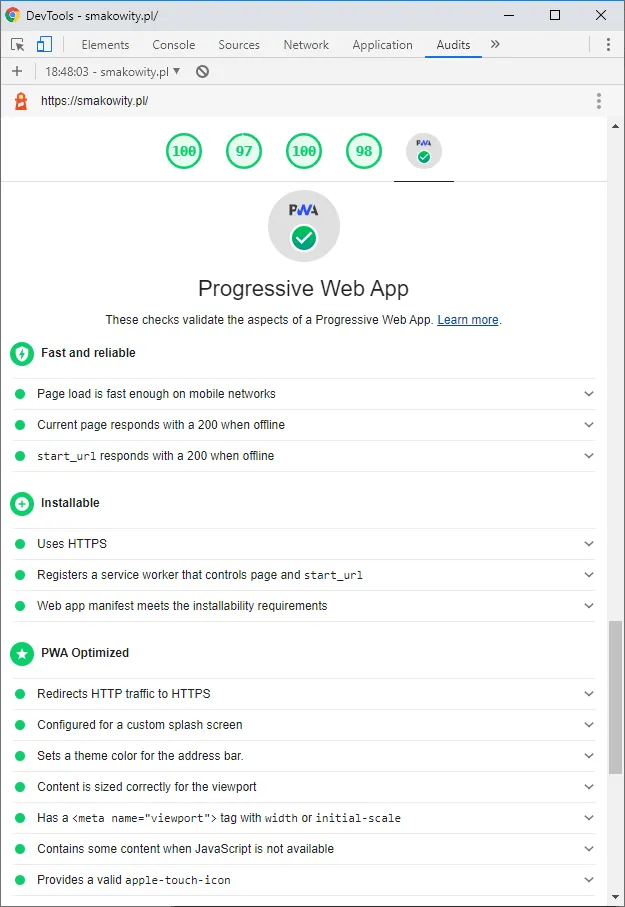
Google has also prepared a PWA checklist, which is worth reviewing when expanding your PWA with additional features.
© 2026 paweldymek.com