Trusted Web Activity - A Way to Publish PWA on Google Play
Trusted Web Activity (TWA) is a way to display Progressive Web Apps (PWA) using Chrome Custom Tabs. This technology allows you to quickly wrap your existing website into an installable application for Android and publish it on the Google Play Store. The app runs in full-screen mode without an address bar, giving the impression of using a native application.
Benefits of using TWA
- Common code base for multiple platforms - reduces the cost of application development.
- Easy and quick updates - the application UI and data are fully downloaded from the web server, so there is no need to publish a new version on Google Play each time. Every user gets the update immediately.
- Low crash rate - the risk of application failure is low, as all content is downloaded from an external source.
- Small application size - the average size is about 200 kB.
How to use TWA?
1. Ensure compliance with PWA
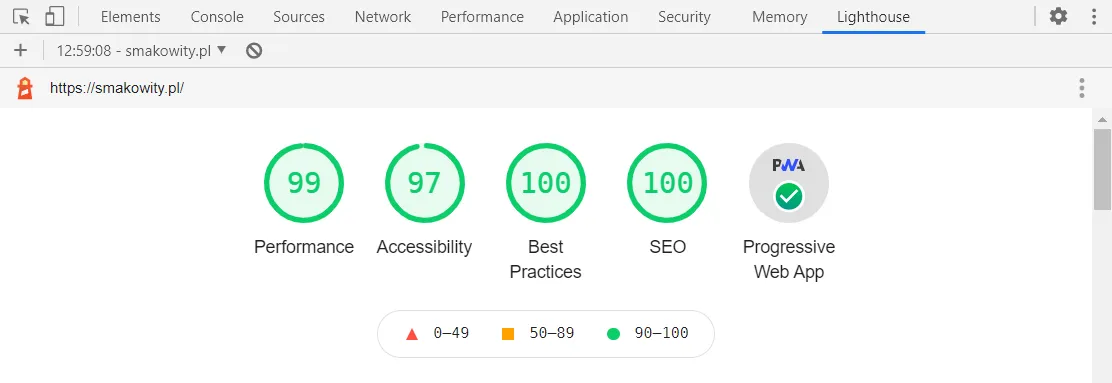
To wrap a website in TWA it must first comply with the PWA standard. The Lighthouse tool (built into Chrome DevTools) and my previous article explaining what PWA is and how to meet its requirements can be helpful here.
By following these guidelines, the website should at least:
- have a manifest.json file with basic information about the application,
- contain a service worker responsible for offline mode (e.g. displaying a page informing the user they need to go online),
- encrypt all traffic via HTTPS,
- have good responsiveness to look correct on small screens.
2. Generate APK/AAB files for publication on Google Play
The Bubblewrap tool developed by Google is well-suited for this. Prepare the environment as described in the README.md file, then install Bubblewrap with the command:
npm i -g @bubblewrap/cliNext, initiate a new Android project with a link to the manifest.json file:
bubblewrap init --manifest https://example.com/manifest.jsonThe generator will ask you a few questions necessary to generate the application, most of which confirm the values already contained in the manifest.json file. The part concerning the application signing key is particularly important. You can generate a new one or use an existing one - just make sure not to lose it, as this would result in the loss of the ability to update the application in the future, requiring you to create a new one (without the previously gained ratings and reviews).
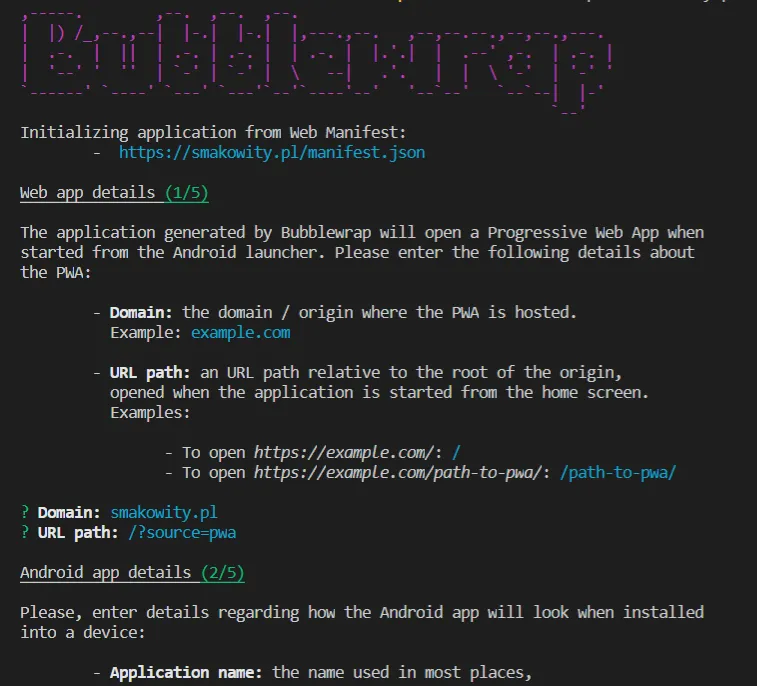
After answering the questions, the Android project file structure will be generated in the same way as when using Android Studio.
Then build the application with:
bubblewrap buildThis will generate AAB and APK files ready for publishing on Google Play.
3. Publish assetlinks.json
The content displayed by Trusted Web Activity, as the name implies, is trusted. This means that the page must declare via a special JSON file that it is associated with a specific Android application. This is done with a file called assetlinks.json placed in the .well-known directory, which must be publicly accessible at https://example.com/.well-known/assetlinks.json.
After Bubblewrap builds the application, the assetlinks.json file is already generated in the project directory. If you are building the application in a different way, you can generate it using the Statement List Generator.
It is important that the SHA-256 fingerprint contained in the file matches the one assigned to the Android application in the Google Play Console (visible in the “App signing” section). Otherwise the app will run with the address bar visible instead of in full-screen mode.
Examples of TWA applications
- Google Maps Go - a lighter version of Google Maps.
- Morele.net - a consumer electronics store.
© 2026 paweldymek.com